How to Use Gemini AI for Hairstyles: Tutorial + Prompts
Step-by-step tutorial for using Gemini AI to try on hairstyles and hair colors. Real prompts, common pitfalls, and what to do when Gemini falls short.
You can use Gemini AI to try on a new hairstyle or hair color from a single selfie, without an app and without learning Photoshop. The catch is that the result depends almost entirely on how you write the prompt and which photo you upload.
This guide walks through the exact steps, four working prompts you can copy-paste, the common ways the result goes wrong, and the cases where a different tool will save you a lot of time.
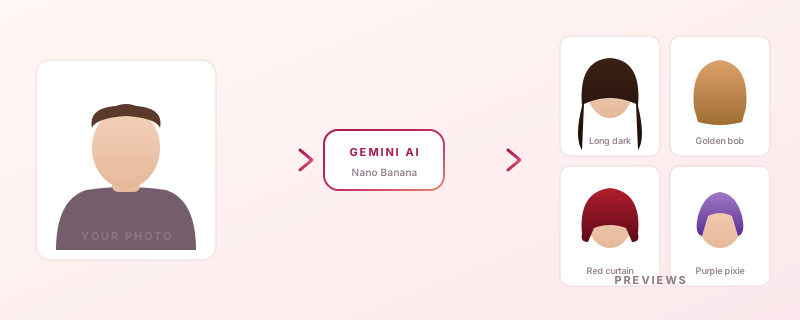
What can Gemini AI do with hairstyles?
Gemini AI can do photo-realistic hairstyle and hair color edits on an uploaded portrait by routing the image through its Nano Banana model family. According to Google’s announcement of Nano Banana, the team focused specifically on “maintaining a character’s likeness” across edits, which is why a Gemini hairstyle change usually keeps your face, jawline, and skin tone recognizable while only the hair changes.
In practice, Gemini AI can:
- Swap the cut (bob, pixie, buzz cut, fade, layers, bangs, long waves, mullet, and so on)
- Change the hair color (ash blonde, copper, balayage, jet black, pastel, gray)
- Keep the face, pose, outfit, and background steady across the edit
- Apply lighting and gravity so the new hair sits on the head naturally instead of looking pasted on
- Generate variations from one selfie so you can compare looks
It is built on top of two image models. The original Nano Banana, released August 26, 2025, runs on Gemini 2.5 Flash Image. Nano Banana Pro, launched November 20, 2025, runs on Gemini 3 Pro Image and adds 4K output, better text rendering inside images, and stronger character consistency across multiple shots. Free Gemini app users get a small daily quota on Pro and unlimited use of the standard model. All output gets a SynthID invisible watermark and, on free tiers, a visible watermark.
What it cannot do well: it cannot show you your new hairstyle from the back or in 360 degrees, it cannot guarantee the same exact result twice, and it does not know your real hair texture from one frontal photo. Once you understand those limits, the next question is which model and which prompt to actually run.
Step 1: Open Gemini and pick the right image model
To start a Gemini hairstyle edit, go to gemini.google.com, sign in with a Google account, and start a new chat. The image generation feature is what Google’s Gemini API docs call “text-and-image-to-image” editing, and it is enabled by default in the consumer Gemini app, in Gemini in Google Photos, and via the Gemini API.
Quick model picker:
- Free or “2.5 Flash” pin in the model selector runs the original Nano Banana. Fast, unlimited on the free tier, slightly weaker at fine-grain detail.
- “3 Pro” or “Thinking” pin runs Nano Banana Pro on Gemini 3 Pro Image. Sharper, better at preserving your exact face, but rate-limited on free accounts and metered on Google AI Pro and Ultra subscriptions.
For a one-off hairstyle preview, the standard model is enough. If you are testing a major chop or a dramatic color and want the photo to look real enough to share, switch to Nano Banana Pro. The next step is the photo, and the photo is where most failed Gemini hairstyle results actually start.
Step 2: Upload a photo that will actually work
Upload a front-facing, well-lit selfie where your full hairline is visible and the background is plain. Click the plus icon in the Gemini chat bar, choose “Upload images,” and pick a photo that meets four conditions:
- Clear, daylight or soft indoor lighting on your face
- Camera roughly at eye level, not from below
- Hair pushed back enough to see your hairline and ears
- No heavy filters, no Snapchat overlays, no busy background
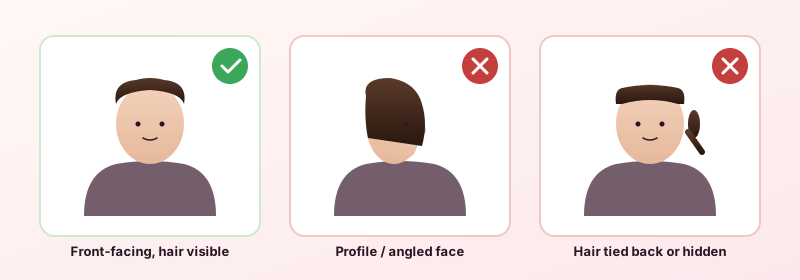
Profile shots, dim ring-light selfies, and group photos are the three biggest sources of bad output. With a profile photo, Gemini has to guess what the front of your head looks like, and the new hairstyle gets pasted onto a face the model is partly inventing. With dim lighting, the edit usually re-lights the whole image and changes your skin tone in the process.
Once the photo loads, write the prompt. Prompt anatomy comes next.
Step 3: Write a Gemini prompt that actually changes the hairstyle
Write a Gemini hairstyle prompt that names the cut, names what stays the same, and ends with a realism cue. The pattern that works for almost any style:
Using the uploaded photo, render the same person with [SPECIFIC CUT, LENGTH, TEXTURE]. Keep the face, skin tone, eye color, expression, lighting, and background unchanged. Photo-realistic, neutral lighting, no filter.
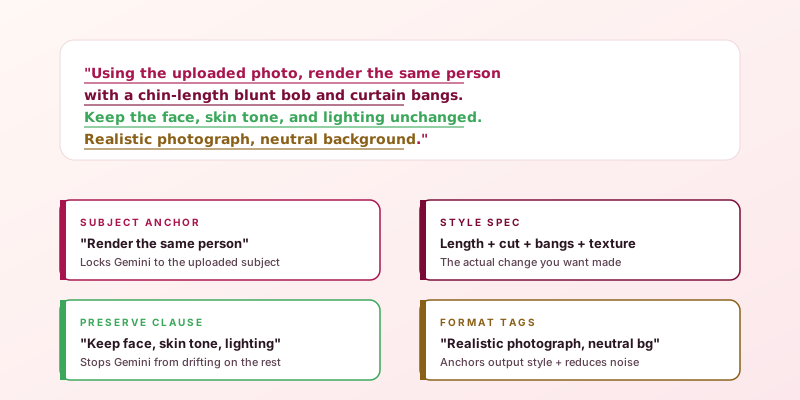
Four prompts you can copy and paste:
Chin-length blunt bob with curtain bangs
Using the uploaded photo, render the same person with a chin-length blunt bob and soft curtain bangs that part in the middle. Keep the face, skin tone, expression, lighting, and background exactly the same. Photo-realistic, natural daylight, no filter.
Textured low-fade crew cut (men’s)
Using the uploaded photo, render the same man with a textured crew cut on top, about one inch long, with a low fade on the sides and clean neckline. Keep the face, beard, skin tone, expression, outfit, and background unchanged. Realistic photograph, even lighting.
Long beachy waves with face-framing layers
Using the uploaded photo, render the same person with long beachy waves down to the chest, face-framing layers, slightly tousled, natural shine. Keep the face, skin tone, eye color, expression, lighting, and background identical. Photo-realistic, no retouching of the face.
Side-by-side comparison grid
Using the uploaded photo, generate four photo-realistic variations of the same person in a 2x2 grid, each with a different hairstyle: 1) sleek high ponytail, 2) shoulder-length lob, 3) shaggy mullet, 4) natural afro. Keep the face, skin tone, expression, and lighting consistent across all four.
A few rules that show up in nearly every successful prompt:
- Be specific, not generic. “Short hair” gives random short hair. “Chin-length blunt bob with curtain bangs” gives a chin-length blunt bob with curtain bangs.
- Lock the variables you don’t want changed. If you don’t say “keep the face unchanged,” the model often softens or reshapes the face.
- Add a realism cue like “photo-realistic,” “natural daylight,” “no filter,” or “DSLR.” Without it, results drift toward illustration.
- Use one prompt per chat. If you stack five different hairstyles in the same conversation, the model starts blending them.
That last rule matters most for color, because color is where Gemini either nails the result or produces something obviously off.
How do you try on a new hair color in Gemini?
To try on a new hair color in Gemini, upload your photo and prompt the model to recolor only the hair, keeping the cut identical and the skin tone unchanged. The trick is that color edits are easier than cut edits, but they are also where Gemini most often spills into the skin and eyebrows.
A working hair color prompt:
Using the uploaded photo, change only the hair color to a soft ash blonde with subtle darker roots. Keep the same haircut and shape. Keep the face, skin tone, eyebrows, and eye color exactly the same. Photo-realistic, natural lighting.
Useful color prompts to try:
- “deep auburn with copper highlights”
- “platinum blonde, slightly cool, with darker roots about one inch from the scalp”
- “natural jet black with high shine”
- “muted rose pastel, evenly applied, salon-finished”
Two things Gemini still gets wrong on color, even with Nano Banana Pro:
- Eyebrow drift. The model often re-tints eyebrows to match the new hair, even when you say not to. If it happens, regenerate or add “do not change eyebrow color” explicitly.
- Lighting tint. A new color sometimes pulls a warm or cool cast over the whole photo. Ask for “neutral white balance” if it shifts.
If you are mostly here for color and don’t want to keep rewriting prompts, a dedicated free hair color changer on Trimsy handles this with a single click on a preset instead of a paragraph of instructions. With those out of the way, the next thing to know is what tends to break.
What are the most common Gemini hairstyle mistakes?
The most common Gemini hairstyle mistakes are face distortion, eyebrow drift, prompt confusion across multiple turns, and unrealistic hair physics on updos. Knowing what they look like makes them easier to fix.
Face distortion
Symptom: the new hair looks great, but your face looks slightly off - softer jawline, smaller chin, different nose. This usually happens when the photo is low-resolution or the prompt does not lock the face. Fix: upload a higher-resolution photo, and add “Keep the face, jawline, and facial proportions exactly the same. Do not retouch or smooth the skin” to the prompt.
Eyebrow and skin tone drift
Symptom: you went platinum blonde and now the eyebrows are blonde too, or the skin reads paler. Fix: explicitly say “Keep the eyebrow color and skin tone unchanged.” If it still drifts, regenerate two or three times. Outputs are non-deterministic.
Prompt confusion across multiple edits
Symptom: by the third or fourth hairstyle in the same chat, results start blending styles or distorting more. Gemini’s image edits work best when each new style starts in a fresh chat with a fresh photo upload. The Nano Banana models are conditioned on the chat history, so old prompts leak into new ones.
Updos and complex styles
Symptom: high buns, French braids, and intricate updos look melted, oversimplified, or floating. Updos are genuinely the weakest area for current image models. Fix: try the prompt twice, accept that the result is directional rather than salon-accurate, or use a different tool.
Hair texture loss
Symptom: a curly-haired user gets straight or loosely wavy hair back, even when the prompt asks for a specific style on natural hair. Fix: name your real texture explicitly. “Type 4 coily natural texture, then styled into a tapered afro” gives much better results than “tapered afro on curly hair.”
Floating or stiff hair
Symptom: the new hair looks pasted on, not anchored to the scalp, or it does not move with light. This is partly fixed in Nano Banana Pro because it does a more explicit reasoning pass on physics, but the standard model still slips. Switching to the Pro model is the simplest fix.
These pitfalls also explain why Gemini sometimes is not the right tool at all.
When is Gemini the wrong tool for hairstyle try-on?
Gemini is the wrong tool for hairstyle try-on when you don’t want to write prompts, when you need consistent results across many styles, or when you need a 360-degree view. Gemini is great if you have one specific look in mind and you can describe it precisely. It gets frustrating fast in three other situations.
You don’t want to learn prompt syntax. If you are happy clicking a preset image of “soft curtain bangs” and seeing the result on your face, a preset-based try-on tool is faster. Trimsy is built for that flow specifically - upload a photo, click one of the 180+ hairstyle presets, get a result without writing prompts at all. This is not a knock on Gemini. It is a different tool for a different mood.
You want to compare 10 to 20 looks back to back. Gemini will do it, but you have to manage chats, regenerate when results drift, and keep rewriting prompts. A grid-based or preset-based tool gives you scrollable variations on the same face faster.
You need consistent angles or a back view. Image generation models, including Nano Banana Pro, only know what your front-facing selfie shows them. They cannot reliably show how a layered cut sits at the back of your head. For that you still need a real consultation or a multi-angle photoshoot.
For everything else - one-off “what would I look like with a buzz cut” experiments, dramatic color tests before a salon visit, fun share-with-friends edits - Gemini is genuinely good. It is also extremely available, since the Gemini app crossed 650 million monthly active users by the November 2025 Pro launch, with roughly a third of US adults reporting they have used a generative AI tool. The next section answers the questions people actually ask once they start using it.
FAQ
Is Gemini AI hairstyle free?
Yes, Gemini AI hairstyle edits are free on the standard model. Sign in to gemini.google.com with any Google account, upload a photo, and you can run unlimited edits on Nano Banana, the Gemini 2.5 Flash Image model. Nano Banana Pro, the Gemini 3 Pro Image model, has a daily free quota and higher limits for Google AI Pro and Ultra subscribers. Free-tier images get a visible watermark plus an invisible SynthID watermark.
What is the best Gemini AI hairstyle prompt?
The best Gemini AI hairstyle prompt is a specific one that names the cut, locks the face, and asks for photo-realism. A reliable template: “Using the uploaded photo, render the same person with [specific style, length, texture]. Keep the face, skin tone, expression, lighting, and background exactly the same. Photo-realistic, natural daylight, no filter.” Generic prompts like “give me short hair” produce random results.
Can Gemini AI change hair color from a photo?
Yes, Gemini AI can change hair color from a photo. Upload a clear front-facing selfie, then prompt: “Change only the hair color to [color] in the uploaded photo. Keep the haircut, face, skin tone, and eyebrows unchanged. Photo-realistic.” Pastels, blondes, and natural shades work better than neon colors. Eyebrow drift is the most common artifact, so regenerate or add an explicit “do not change eyebrow color” line if it happens.
Why does Gemini change my face when I ask for a new hairstyle?
Gemini changes your face when the prompt does not lock the face explicitly, the input photo is low resolution, or the model decides the new hairstyle requires a different head shape. Add “Keep the face, jawline, and facial proportions exactly the same. Do not retouch or smooth the skin” to the prompt, upload a higher-resolution photo, and switch to Nano Banana Pro for stronger likeness preservation.
How do I write a Gemini AI hairstyle prompt for face shape?
To write a Gemini AI hairstyle prompt for face shape, name your face shape and ask the model to recommend or render a flattering style. Example: “I have an oval face with a soft jawline. Show me four photo-realistic hairstyles that suit an oval face shape, in a 2x2 grid, all on the uploaded photo. Keep my face, skin tone, and lighting consistent across all four.” Gemini is genuinely good at this because the underlying language model can reason about which cuts flatter which face shapes before generating.
Does Gemini work for men’s hairstyles too?
Yes, Gemini works well for men’s hairstyles, including fades, crew cuts, mullets, buzz cuts, and longer styles. Beard preservation is the main extra variable. Always include “keep the beard, mustache, and facial hair unchanged” if you have facial hair, otherwise the model sometimes shaves it during the edit.
Are Gemini hairstyle images watermarked?
Yes, all Gemini-generated and Gemini-edited images carry an invisible SynthID watermark, and free-tier outputs also have a visible watermark. Google AI Ultra subscribers get watermark-free images on Nano Banana Pro. The SynthID layer cannot be removed and is detectable by Google’s verification tools regardless of cropping or compression.
If you’ve gotten this far, you have everything you need to run Gemini AI hairstyle and color edits well: the right photo, the prompt anatomy, the model picker, the failure modes, and the moments where another tool is just faster. For preset-driven try-ons without prompt engineering, Trimsy was built for exactly that flow. For everything else, Gemini handles it from a single chat box.